Firestick TV App
Turn any TV with an Amazon Firestick into a live queue board for your waiting area. Keep your lobby organized — visitors see where they are in line, hear their name called, and know exactly where to go.
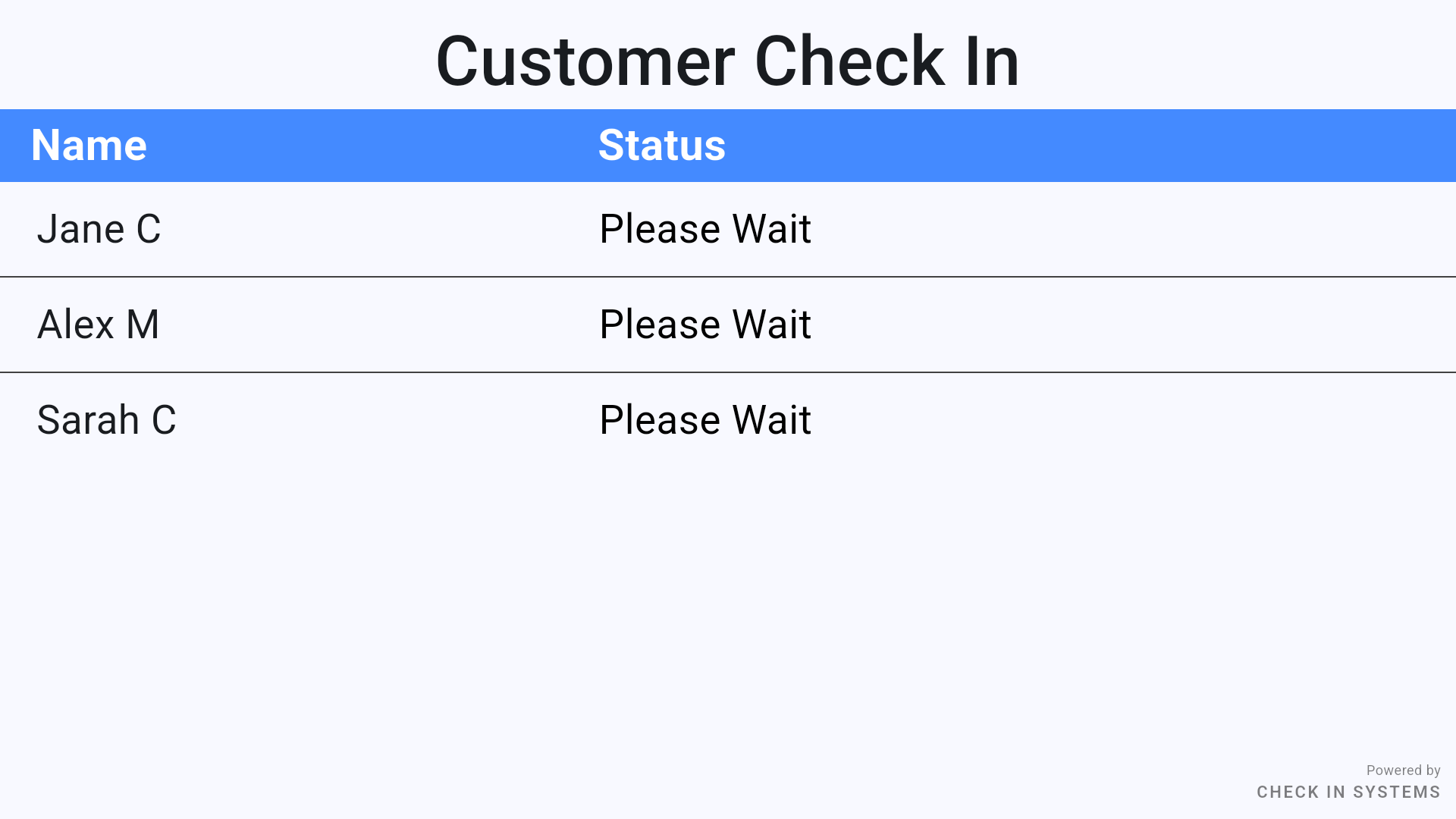
The TV shows each visitor's name and status in real time. The display updates automatically as visitors check in and move through the queue.
Start Free Trial See Setup Steps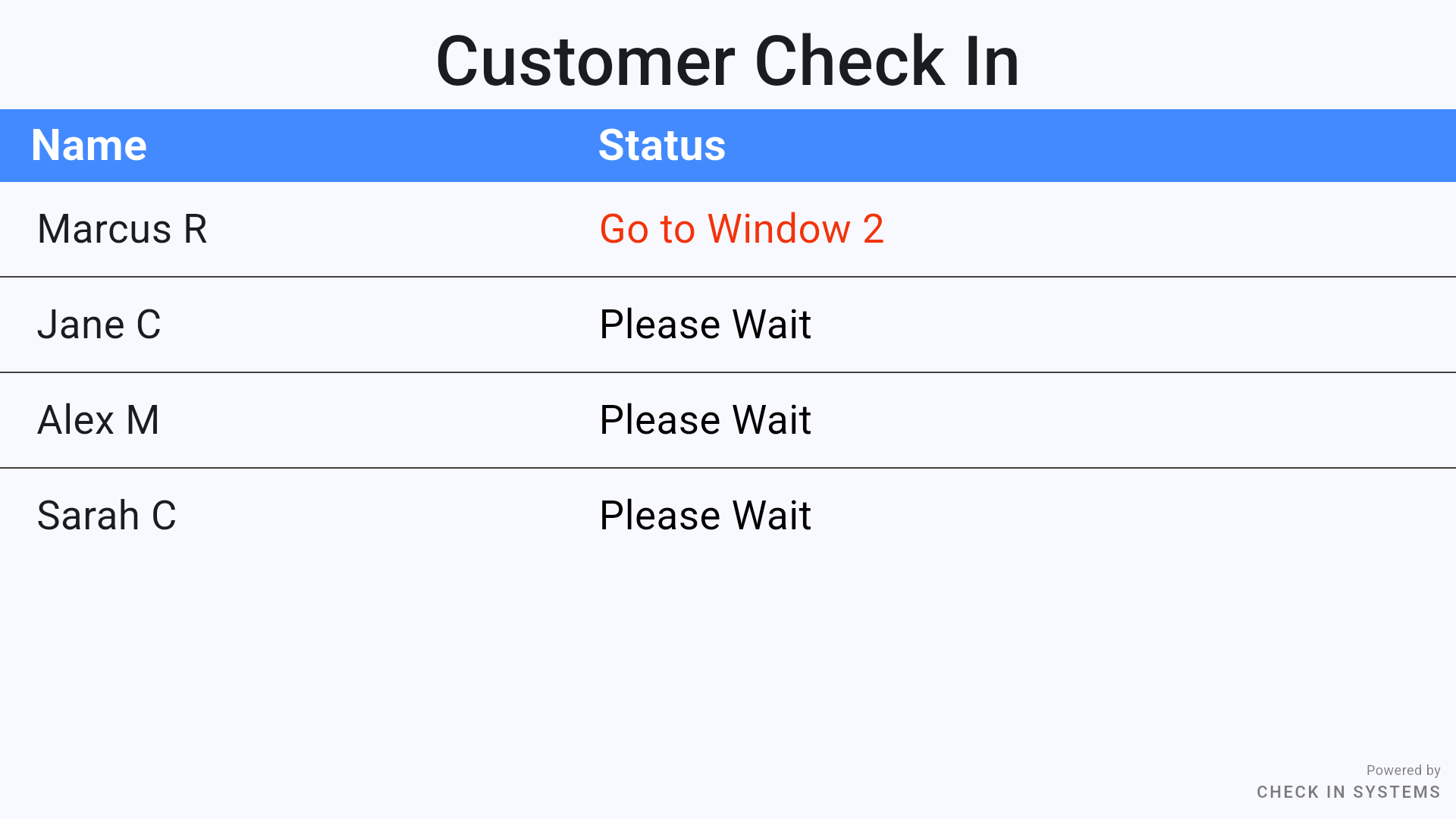
Live Queue Display
Each visitor's name and status appear on the TV the moment they check in from an iPad, QR code, or mobile app.
Audio Announcements
Names are read out loud through the TV speakers — first name and last initial.
Station Routing
Route visitors to a window, desk, or counter. The TV announces: "John D., go to Window 1."
Configurable Messages
Customize the wait message and acknowledgment message to match your workflow.
Show Ticket Number
Display a ticket number instead of a name for added privacy and to limit personally identifiable information on the screen.
Rotating Images
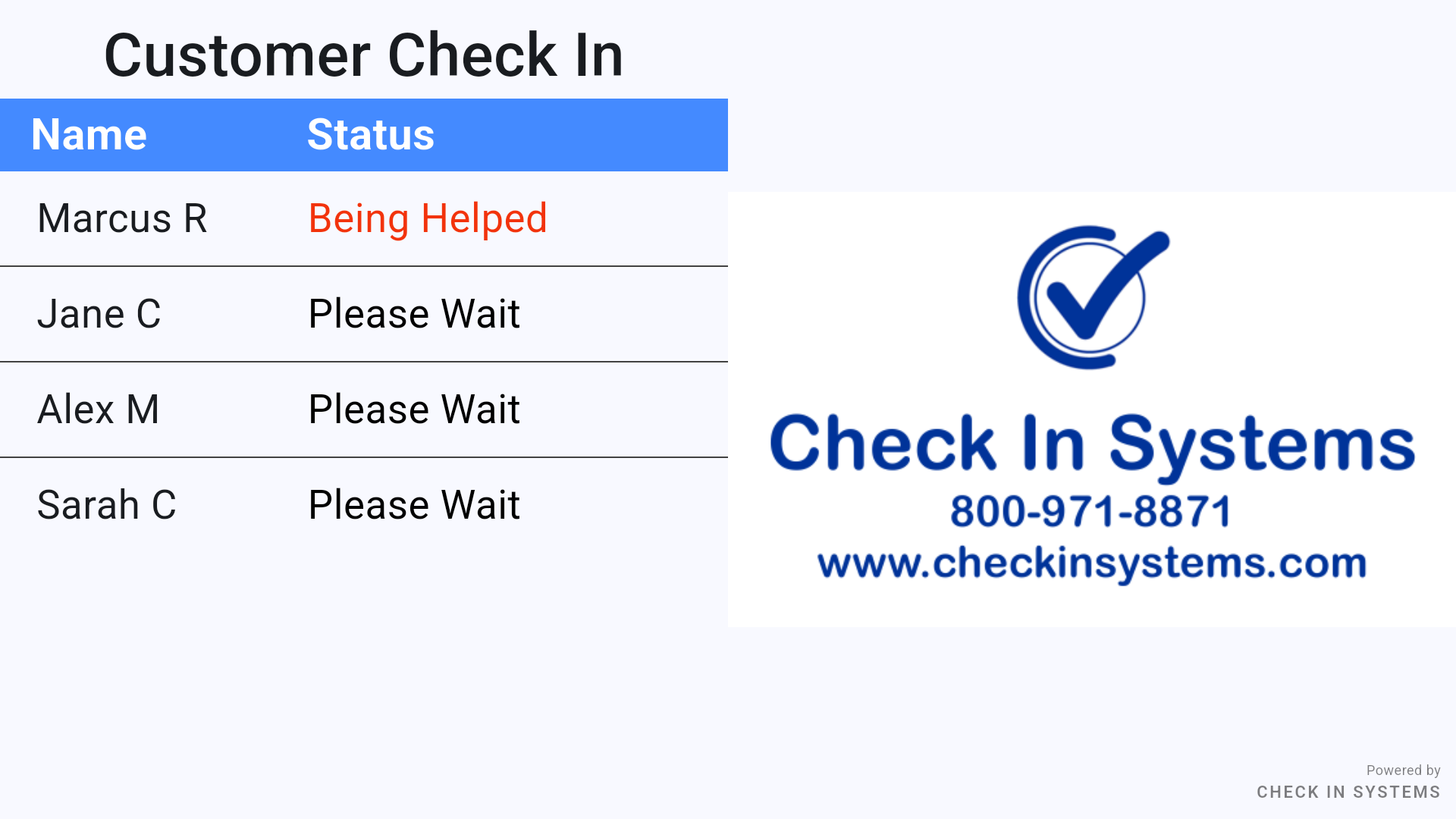
Split the screen and show up to 20 rotating images for ads, instructions, or announcements.
Show Ads Alongside the Queue
Display the live queue on one side of the screen and up to 20 rotating images on the other. Easily upload and manage images in TV Configuration.
Use the space for advertisements, promotions, seasonal messages, holiday hours, visitor instructions, or any other content you want people to see while they wait.
Setting Up the Firestick
Six simple steps from box to live display.
Set Up the Firestick Hardware
Plug the Amazon Firestick into an available HDMI port on your TV and connect the included power adapter. Turn on the TV and select the correct HDMI input. The Firestick will power on and walk you through the initial setup prompts.
Follow the on-screen instructions to select your language, connect to your Wi-Fi network, and sign in to your Amazon account. If you do not have an Amazon account, you can create a free account with any email during this step.
Once the setup is complete and you are on the Firestick home screen, the device is ready.
Download the App
From the Firestick home screen, navigate to the Amazon Appstore. Use the search function to search for "Check In" and look for the Check In TV app in the results. Select it and click Get or Download. The app will install in a few seconds. Once installed, open the app.
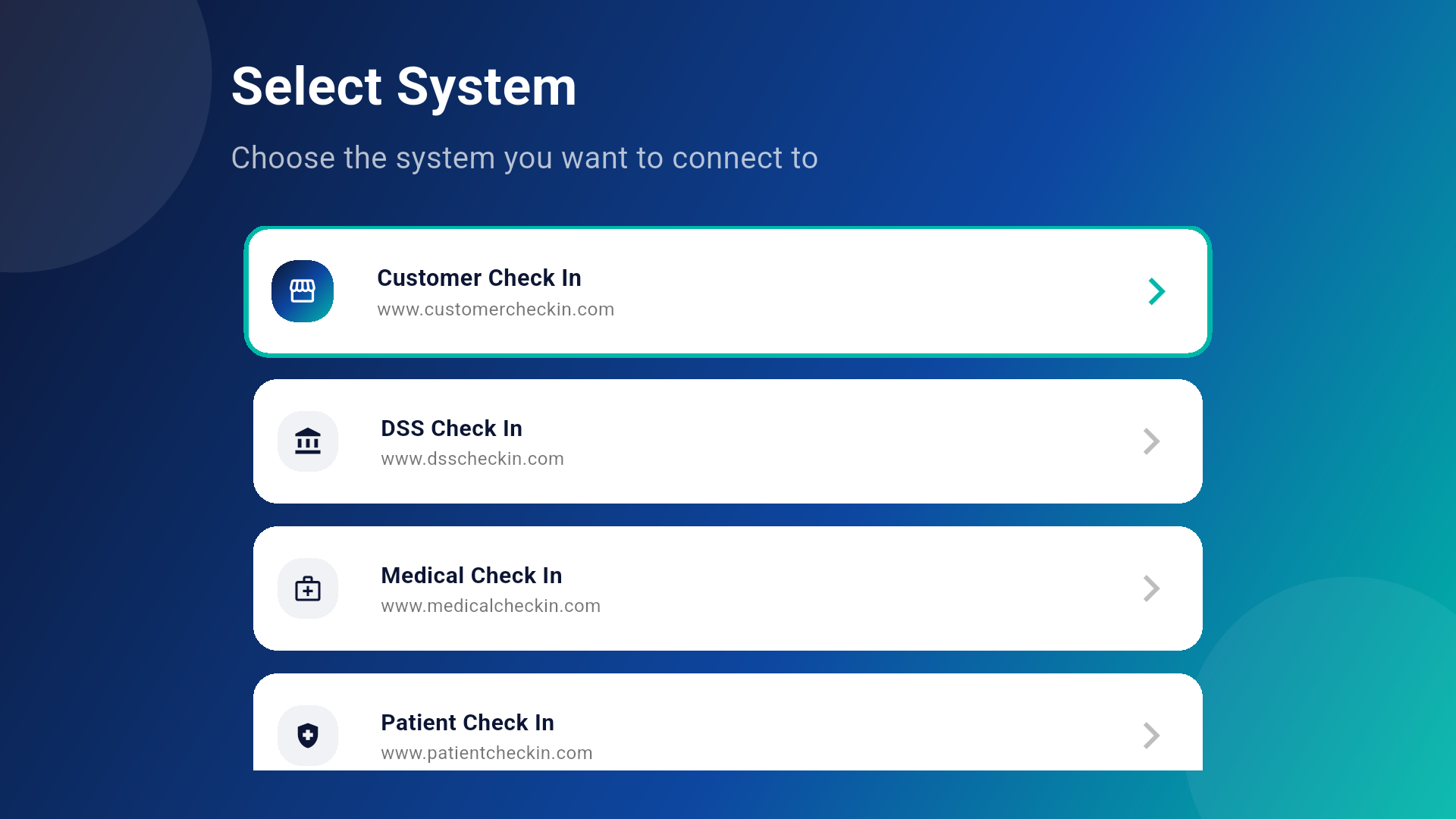
Select Your System
Open the app and choose Customer Check In from the list.
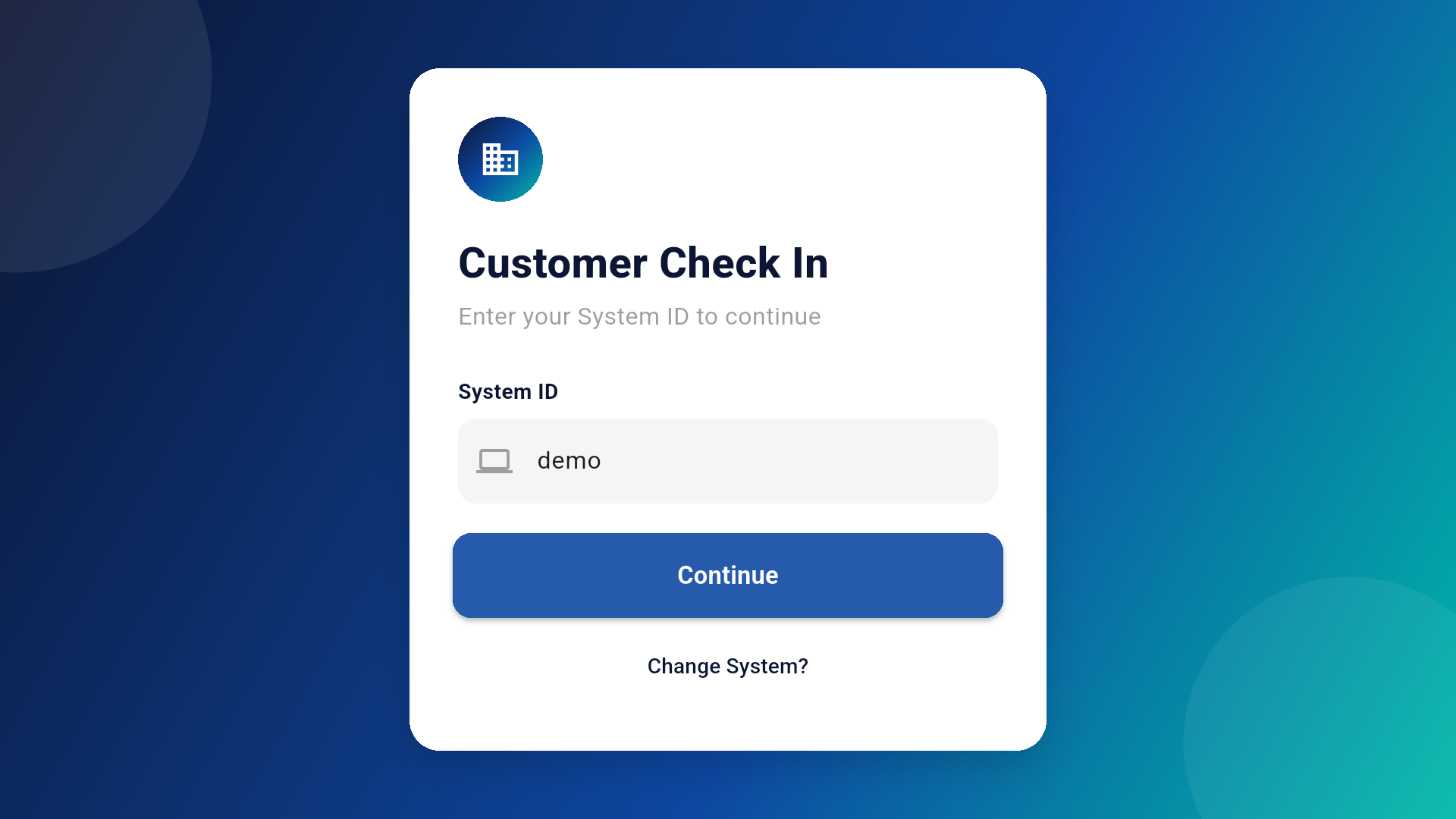
Enter Your System ID
Enter the System ID from your account. This is the same ID used to log in to your website, and it connects the Firestick directly to your location's live queue.
Your Display Is Live
The TV is now connected to your queue. Names or numbers appear as visitors check in, audio announcements play through the TV speakers, and any configured images begin rotating automatically.
Customize Your Display
To change the font size, messages, queue order, station names, ticket number mode, images, or any other setting, log into your account and navigate to the TV Configuration page. Changes take effect as soon as you save — no need to touch the Firestick again.